Quick Guide for CodyNick ID
CodyNick ID’s purpose
CodyNick ID is a SSO (single sign-on) service created by CodyNick to facilitate authentication across different services provided by CodyNick. Upon registering for a CodyNick ID, a unique ID number will be assigned to you, which is used to identify you across CodyNick’s services.
Signing in using CodyNick ID
- Connected services (any):
- Open the URL for your service (e.g., support.codynick.com, learn.codynick.com). If there is a login button, click on it. Some services don’t have one and will redirect you to CodyNick ID automatically.
- You will be redirected to CodyNick ID to log in:
- If you have a CodyNick ID account, log in using your credentials which you either created yourself or were given to you by an instructor. Please don’t create multiple accounts.
- If you don’t have an account, click on “sign up”. A pop-up window will open prompting you to enter your information, and to choose a username or password. After successfully registering, you will receive an email containing a verification link. Open the link in a new tab, and then log in through your original login page using your chosen credentials.
- Click on “Continue as [username]”, and you will be redirected back to your service
- CodyNick ID Core (for modifying your information, changing passwords, etc)
- Go to https://id.codynick.com/ .
- If you don’t have an account, sign up using the sign up page, otherwise click on “Login” and log in to your account using the same steps above.
- Navigate the platform using the navigation bar on the top of the page (on mobile devices, click on the menu button to view the navigation bar.
Resetting your password
To reset your forgotten password, click on “Reset your password” on the login or signup page or click here. Then, enter your email (the one associated with your CodyNick ID account) and click on “Reset my password”. You will receive an email with a new password allowing you to log back in again. Please change your password using the steps below as soon as possible after you regain access to your account.
To reset your password from within the portal, log into the CodyNick ID core (using steps from the previous section), and navigate to the “Change Password” tab. Enter your new password, and click on “Update Password”.
If you have lost access to your email account, or don’t remember your username or email address, please reach out to your instructor or CodyNick support to recover your account.
CodyNick ID Cards
CodyNick ID cards are issued for the sole purpose of conveniently accessing a person’s CodyNick ID account by a CodyNick staff member or instructor. The information displayed on these cards, such as the name of the user, are not verified by CodyNick. Furthermore, the photo displayed on the card may not be of the user or may be an avatar or other unrelated picture.
The actual card is slightly bigger than a standard wallet card. You can see a sample card here.
Once printed or downloaded, the card remains valid for
90 days only. After expiry, you can download and print
a new card from the CodyNick ID Core Portal.
How to get a card:
- Log in to CodyNick ID Core
- Navigate to “My Info”
- Click on “Your ID Card”
- Print the page, or save it as PDF using print to PDF
ensure you enable “Background Graphics” in order
for the card to save or print correctly.
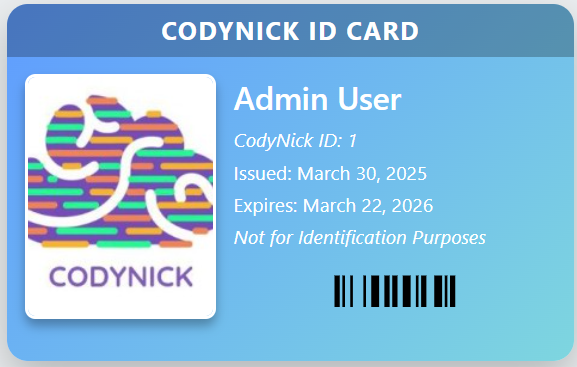
Additional Note: Older CodyNick ID cards (Before December 2025) were valid for 12 months, were double-sided, contained a “Date of Birth” field, and were slightly different in color and layout.